EDX - Warehouse Management System Integration
General
The EDX AddOn WMS provides a basic WMS (Warehouse Management System) interface.
With the WMS interface, logistics companies can be connected to Microsoft Dynamics 365 Business Central. The message exchange is bidirectional. This means that goods receipts/issues can be reported to the logistics company and confirmations processed accordingly in Microsoft Dynamics 365 Business Central. Inventory reconciliation is possible via the inventory message.
The EDX WMS intermediate documents can be retrieved via the user search with the term "WMS".
Requirements EDX version
At least:
- EDX 21.0.46734.0
- EDX WMS 21.0.46590.0
Note
In the version EDX WMS Addon V14.1.0.11 the following functions are not available:
- Send / receive GS1 acknowledgement of receipt
- Transfer of PDF files, e.g. proforma delivery bill, within the instruction messages as Base64 coded docment
Establishment
EDX Setup Wizard
After the app installation, the setup is performed with the EDX setup wizard. This setup wizard can be called up via the EDX Setup menu ribbon ("More options" > "Action" > "Setup" > "EDX setup wizard"). The EDX setup wizard is started. Via the selection "General" the required document types as well as number series are created. see EDX manual chapter "EDX setup wizard".
EDX Setup WMS
In the WMS info tab, the following parameters can be set for the interface:
| Area | Parameter | Description | |
|---|---|---|---|
| Goods issue confirmation from WMS to Microsoft Dynamics 365 Business Central (Outbound Notification) | Transfer deliverer to goods issue | To: Indicates that the deliverer is to be transferred from the sales order to the goods issue. The transfer of the deliverer is done before posting the goods issue. Off: When posting the goods issue, the set deliverer of the goods issue header is used. |
|
| Delivery and Invoice | On: When posting the goods issue, the delivery and invoice will be created. Off: Only the delivery is posted. |
||
| Goods Issue from BC to WMS (Outbound Instruction) | Send Item Bill of Materials | On: If an assembly order exists for the item, then the components of the assembly order are transmitted in the outbound message. Off: The components are not sent with the outbound message. |
|
| Inventory from WMS to BC (Inventory Notification) | Read blocked items | On: If the inventory notification contains a blocked item, then it will not be processed. Off: Processing will be aborted with an error as soon as a blocked item is reported back. Note Message processing will be aborted completely. This is also valid for the following parameters from the area "Stock from WMS to BC" |
. |
| Read over missing items | To: If the stock message contains an item that does not exist, then this item will not be processed. Off: Processing will be aborted with an error as soon as an article is reported back which does not exist in the Microsoft Dynamics 365 Business Central article master. |
||
| Missing serial number/batch overread | On: If the stock report returns an item requiring serial number/batch without serial number/batch, then this item will not be processed. Off: Processing will be aborted with an error if an item requiring serial number/batch without serial number/batch is reported back. |
EDX Partner
An EDX partner must be created for the data exchange between Microsoft Dynamics 365 Business Central and the logistics company.
The EDX partner is created e.g. of the type "Contact". Within this documentation the EDX partner "WMS" is used.
EDX Document types
The following EDX documents are assigned to the previously created EDX partner:
KUMAVISION Inhouse Format
| Document | Description | Document direction from Microsoft Dynamics 365 Business Central point of view. |
|---|---|---|
| WMS INVENTORY IMP | Inventory from logistics company to Microsoft Dynamics 365 Business Central see KUMA WMS Guideline "WMS Inventory Notification" | Incoming |
| WMS WHSE RECEIPT EXP | Inbound from Microsoft Dynamics 365 Business Central to logistics company see KUMA WMS Guideline "WMS Inbound Instruction" | Outbound |
| WMS WHSE RECEIPT IMP | Goods receipt from logistics company to Microsoft Dynamics 365 Business Central see KUMA WMS Guideline "WMS Inbound Notification" | Inbound |
| WMS WHSE SHIPMENT EXP | Goods issue from Microsoft Dynamics 365 Business Central to logistics company see KUMA WMS Guideline "WMS Outbound Instruction" | Outgoing |
| WMS WHSE SHIPMENT IMP | Goods issue from logistics company to Microsoft Dynamics 365 Business Central see KUMA WMS Guideline "WMS Outbound Notification" | Incoming |
| WMS WHSE SHIPMENT STATUS IMP | Goods outbound status from logistics company to Microsoft Dynamics 365 Business Central see KUMA WMS Guideline "WMS Outbound State Notification" | Incoming |
| GS1 APP REC ACK EXP | GS1 Application Receipt Acknowledgement Export The assignment is only required if an acknowledgement of receipt is to be sent for an incoming message (see section "GS1 Application Receipt Acknowledgement"). | Outbound |
| GS1 APP REC ACK IMP | GS1 Application Receipt Acknowledgement Export. The mapping is only required if an acknowledgement is to be received for an outgoing message (see section "GS1 Application Receipt Acknowledgement"). | Ingoing |
GS1 Warehousing Messages (Subset Raben)
The following GS1 messages may differ from the original GS1 messages as they contain adaptations for the logistics company RABEN.
| Document | Description | Document direction from Microsoft Dynamics 365 Business Central point of view |
|---|---|---|
| GS1V3.2R INVENTORY IMP | Inventory from logistics company to Microsoft Dynamics 365 Business Central s. GS1 Logistics Inventory Report. | Incoming |
| GS1V3.2R WHSE RECEIPT EXP | Goods receipt from Microsoft Dynamics 365 Business Central to logistics company see GS1 Warehousing Inbound Instruction. | Outbound |
| GS1V3.2R WHSE RECEIPT IMP | Goods receipt from logistics company to Microsoft Dynamics 365 Business Central s. GS1 Warehousing Inbound Notification. | Inbound |
| GS1V3.2R WHSE SHIPMENT EXP | Goods issue from Microsoft Dynamics 365 Business Central to logistics company s. GS1 Warehousing Outbound Instruction. | Outgoing |
| GS1V3.2R WHSE SHIPMENT IMP | Goods issue from logistics company to Microsoft Dynamics 365 Business Central s. GS1 Warehousing Outbound Notification. | Inbound |
After the test phase is completed, all EDX documents should be set to automatic processing.
Storage location
The EDX partner set up must be entered in the associated storage location.
Within this documentation, the EDX partner "WMS" is assigned to the storage location "YELLOW".
This will report goods receipts as well as goods issues for the storage location "YELLOW" to the logistics company "WMS".
The selected storage location should have the following options:
| Logistics | State |
|---|---|
| Goods receipt required | Yes |
| Goods issue required | Yes |
| Picking required | No |
In the storage location the vendor, which corresponds to the logistics company, can be stored.
The customer number assigned by the logistics company must be entered in the "Our account number" field of the vendor.
Logistics facility
For the posting of goods receipt/goods issue, it is necessary to change the goods receipt/goods issue posting method in the "Logistics setup" to "Cancel and show first posting error".
If the posting method is set to "Posting errors will not be processed" and an error occurs during posting, then it will not be registered by EDX and all related interface records will get the status "NAV document created", although no posting has taken place.
Goods issue from BC to WMS (Outbound Instruction)
General
Excerpt from Microsoft Dynamics 365 Business Central Online Help:
[...] If you ship items from a storage location that has been set up to require goods issue processing, you can only enter the goods issue based on origin documents that other departments in your company have approved for processing.
Normally, the employee responsible for the delivery creates a goods issue. The following procedure describes how to create shipping manually in the standard version of Microsoft Dynamics 365 Business Central.
- Select the icon, enter Goods Issue, and then select the associated link.
- Select the New action. Fill in the fields on the General info tab. When retrieving the origin document lines, some of the information is copied to each line..
- *Select the Get origin documents action. The Origin Documents page opens. From a new or open goods issue, you can use the Get Origin Document Filter page to get the rows of the released origin document that specify which items are to be delivered.
Procedure User/EDX
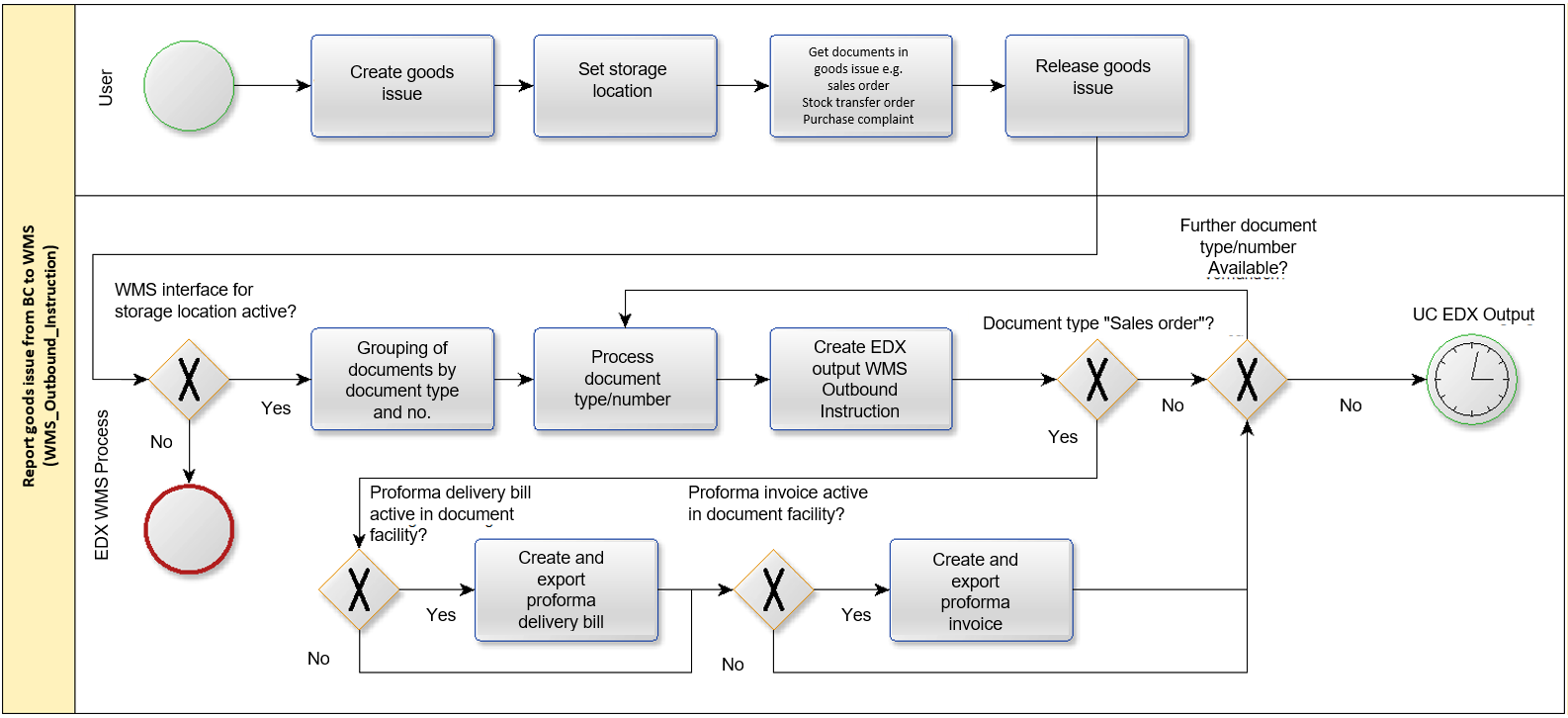
After entering the storage location code "YELLOW" in the General info tab, the fields in the EDX info tab are initialized.
For the automatic EDX document dispatch the following conditions must be fulfilled:
| Field see EDX info register in goods issue | Description |
|---|---|
| External WMS = Yes | The initialization is done according to the selected storage location |
| Released = Yes | |
| EDX Status = Unprocessed | |
| EDX Partner = Partner no. from storage location facility |
The following origin documents are supported by the EDX WMS interface:
- Sales orders
- Outgoing stock transfers
- Purchasing complaints
- Service orders
After the goods issue is released, the message is sent to the logistics company.
If the document "WMS WHSE SHIPMENT EXP" is not configured for automatic processing, then the goods issue can be sent manually with the action "Send EDX goods issue".
When sending the message, one message is created in the EDX Outbox for each origin document/origin number.
The created EDX outbox can be retrieved with the action: "Line > EDX > Outbox ".
In a further transaction the transmission of the outgoing item takes place.
Serial number/batches
The serial / batch numbers are reported back by the logistics company.
It is generally not necessary to record them in the outgoing goods department.
If serial or batch numbers are recorded in the outgoing goods department, they are reported to the logistics company.
Assembly of the final article in the logistics company
If the assembly of the final article takes place in the WMS, then the article BOM can be sent to the logistics company with the WMS interface.
The BOM is exported if the "Send article BOM" switch is activated in the EDX setup and the current article has an assembly or production BOM.
Proforma delivery bill / invoice
Within the interface PDF files can be transmitted as base64 encoded characters.
The transmission is currently only possible for sales orders.
For the transmission, the switch "Include the associated PDF document" must be activated in the EDX message setup (WMS WHSE SHIPMENT EXP). In the "Report selection sales" the reports to be transmitted must be marked with the switch "Use for WMS".
Note
The reports "Proforma delivery bill" as well as "Proforma invoice" are not part of the WMS interface.
Storage location / storage place
When using the app "KUMAVISION Quality Management", location bins are used. The WMS interface reports the goods issue storage bin to the logistics company.
WMS order number / transport number
The order number and transport number used by the logistics company are displayed in the EDX info register.
Send goods issue from BC to WMS again
If it is necessary to send a goods issue to the WMS again, this can be done with the action "Reset EDX status".
If the document "WMS WHSE SHIPMENT EXP" is not configured for automatic processing, then the goods issue can be sent manually with the action "Send EDX goods issue".
Note
The renewed message dispatch should be coordinated in advance with the WMS.
If the WMS has already started picking, usually no more changes are possible.
Exclude goods issue from transmission
In some cases, the created goods issue may not be sent to the WMS. This is the case, for example, if the goods issue was only created for internal processing purposes.
For this purpose, the status of the goods issue must be set to "Open". Then the switch "External WMS" in the EDX info register can be set to "Off". When switching over, the following query is displayed:
When the goods issue is released, there is no transmission to the external WMS. Are you sure?
Assembly order
If there is an assembly order for the goods issue line, then the components of the assembly order are transferred to the logistics company with the "Outbound Instruction" message.
The transfer takes place according to the following conditions:
| condition | description | |
|---|---|---|
| EDX Setup | The configuration switch "Transmit bill of material" must be switched on | . |
| Sales lines | The sales line in the goods issue must be linked to an assembly order. |
Goods issue status from WMS to BC (Outbound State Notification)
General
With the message "WMS WHSE SHIPMENT STATUS IMP" the status confirmations are processed by the logistics company.
The message can be processed with the WMS intermediate document "WMS Goods issue status".
Currently the following status confirmations are available:
| Status | Description |
|---|---|
| 0 = Preparation for picking | The goods issue message has been transmitted to the WMS. Picking should take place shortly. |
| 1 = Picking has been started. | |
| 2 = Picking has been completed | Delivery should take place shortly. |
| 3 = Picking has been aborted | The WMS has aborted picking. Consultation with the WMS required. |
WMS Intermediate document
Check action
The following checks are performed:
| Status | Description | |
|---|---|---|
| Goods issue no. | Logistics document must exist. | |
| Goods issue line number | Logistics document line must exist. | |
| Origin number | If transmitted, then the origin number must match the origin number from the logistics document line. |
Update action
The confirmed status is transferred to the goods issue line.
Outgoing goods
The reported WMS processing status is displayed in the goods issue line with the "WMS Status" field.
Goods issue from WMS to BC (outbound notification)
General
With the message "WMS WHSE SHIPMENT IMP" the deliveries are processed by the logistics company.
The message can be processed with the WMS intermediate document "WMS Goods issue".
Procedure User/EDX
The following diagram shows the automatic message processing sequence.
Prerequisite EDX message setup:
- Automatic processing is enabled.
- BC Release document is activated.
- Post BC Document is enabled.
The posting date should be set to "Receipt document date". In this case the posting date is used by the logistics company.
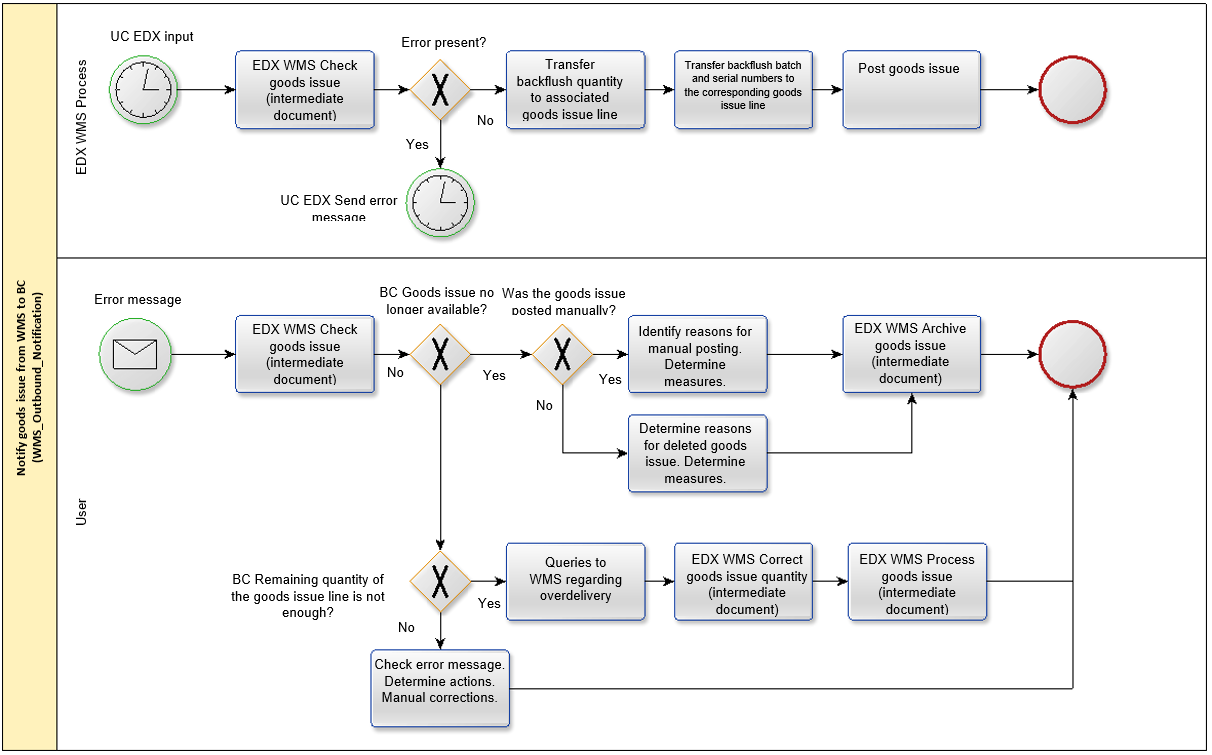
WMS Intermediate document
Serial number/batches
The serial / batch numbers assigned by the logistics company can be retrieved using the "Article tracking" action within the rows.
Assembly order
If the logistics company carries out the assembly of the finished article, then the components used by the logistics company can be retrieved with the action "Bill of material" within the lines.
Note
Currently, the associated production order in Microsoft Dynamics 365 Business Central is not automatically posted by the interface.
Packing material
The packing materials used by the logistics company can be retrieved with the action "Packing materials" within the lines.
The overview contains the SSCC/NVE and the respective package tracking number.
Note
The packing materials are transferred to the corresponding sales delivery when posting the goods issue. In the posted sales delivery the packing means can be retrieved with the action "EDX packing list".
Packing list
With the packing list, the returned packaging materials are displayed in hierarchical form.
For this representation, the logistics company must report back which packaging material is contained in which packaging material.
If outer packaging is used for several origin documents, then it is sufficient to report the outer packaging when it is first used. For subsequent origin documents, only the corresponding outer packaging is referenced (Contained in SSCC/NVE).
Example:
| Type | Package Tracking No. | SSCC/NVE | Contained in SSCC/NVE | Package Description |
|---|---|---|---|---|
| Outer | 202103090000000001 | CONTAINER | ||
| Outer | DHL12334457563233 | 202103080000000000 | 202103090000000001 | PALLET 1 |
| Inner | DHL12334457563234 | 202103080000000001 | 202103080000000000 | KLT |
| Inner | DHL12334457563235 | 202103080000000002 | 202103080000000000 | KLT |
| Additional | 202103080000000002 | BLISTER | ||
| Additional | 202103080000000002 | BLISTER |
Storage location / storage place
When using the app "KUMAVISION Quality Management", storage bins are used.
The storage bin reported back by the logistics company is not processed.
Within the interface it is assumed that the storage bin specified in the goods issue corresponds to the delivery storage bin.
Check action
The following checks are performed:
| Status | Description |
|---|---|
| Goods issue no. | Logistics document must exist. |
| Goods issue line number | Logistics document line must exist. |
| Origin number | If transmitted, the origin number must match the origin number from the logistics document line. |
| Item number | Item number must exist and match the logistics document line. |
| Variant | Variant must exist and match the logistics document line. |
| Quantity to be delivered | Must be <= remaining quantity of the logistics document line. |
| Serial Number/Batches | Must exist if the item is subject to batch or serial number requirements. |
Action booking
- Posting date of the logistics document is set according to EDX message setup.
- WMS order number / shipment number is taken over into the logistics document.
- Quantity to be delivered is taken over in logistics document line.
- Serial number/batches are taken over in origin document.
- Goods issue is posted if this is set in the EDX message setup.
- Packing material is transferred to the booked sales delivery.
Outgoing goods
WMS order number / transport number
The order number and transport number used by the logistics company are displayed in the EDX info register.
Goods receipt from BC to WMS (Inbound Instruction)
General
Excerpt from Microsoft Dynamics 365 Business Central Online Help:
[...]When items arrive at a warehouse that has been set up to process goods receipt, you must retrieve the rows of the released origin document that triggered their goods receipt. If you are using storage bins, you can either accept the default bin entered or, if the item has never been used in this warehouse before, enter the bin into which the item is to be placed. You will then need to enter the quantities of the items received and post the goods receipt..
The following explains how items are received with a purchase order. The steps for sales complaints and stock transfer orders are similar.
- *Select the icon, enter Goods Receipts, and then select the associated link.
- *Select the New action. Fill in the fields on the General info tab. When retrieving the origin document lines, some of the information is copied to each line. For warehouse configurations with managed putaway and picking: if the storage location has a default zone and bin for goods receipts, the Zone Code and Bin Code fields are automatically filled in, but you can change them if necessary.
- Select the Get Origin Documents action. The Origin Documents page opens. From a new or open goods receipt, you can use the Filters to Get Origin Documents page to get the rows of the released origin document that determine which items to receive or ship.
a) Select the filters to use to get orig. documents action.
b) To set up a new filter, enter a descriptive code in the Code field and click Edit Actions.
c) Specify the type of origin document lines you want to retrieve by filling in the respective filter fields.
d) Select the Execute action.[...]
Procedure User/EDX
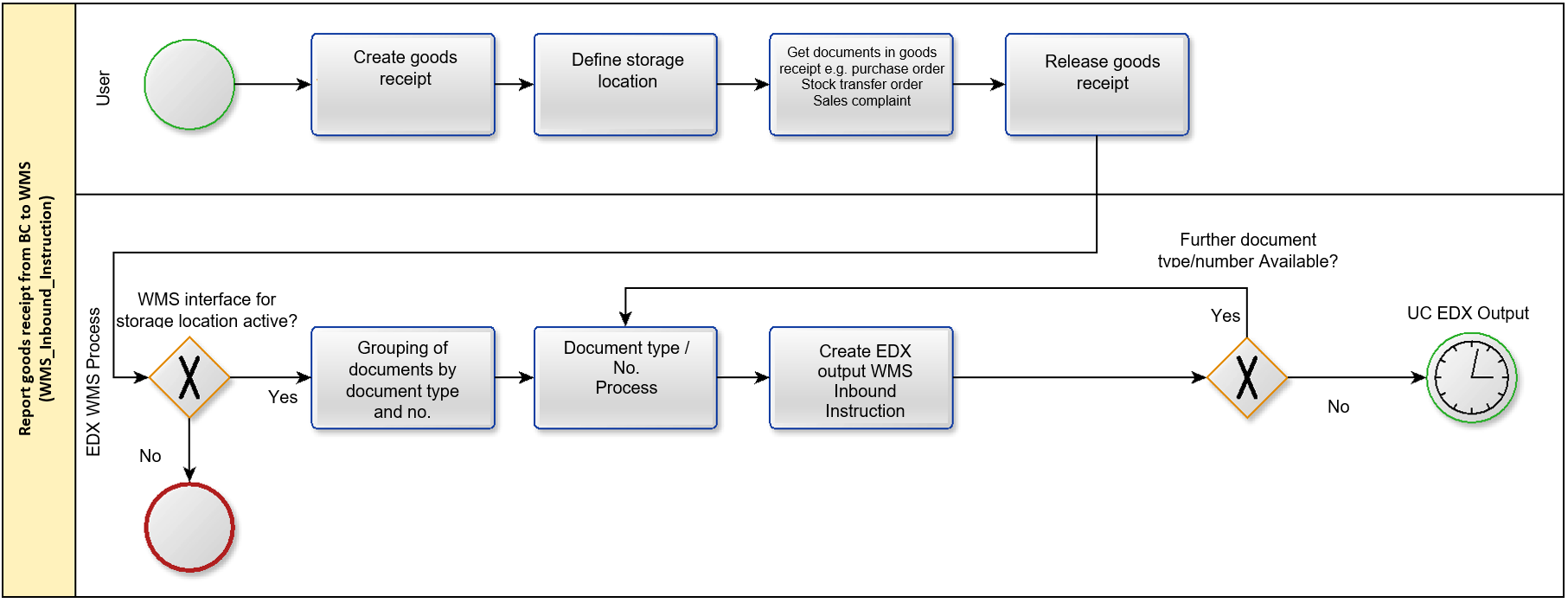
After entering the storage location code "YELLOW" in the General info tab, the fields in the EDX info tab are initialized.
For the automatic EDX document dispatch the following conditions must be fulfilled:
| Field see Inforegister EDX in goods receipt | Description |
|---|---|
| External WMS = Yes | The initialization is done according to the selected storage location |
| Released = Yes | |
| EDX Status = Unprocessed | |
| EDX Partner = Partner no. from storage location |
The following origin documents are supported by the EDX WMS interface:
- Purchase orders (not outside labor)
- Incoming stock transfers
- Sales complaints
After the goods receipt is released, the message is sent to the logistics company.
If the document "WMS WHSE RECEIPT EXP" is not configured for automatic processing, then the goods receipt can be sent manually with the action "Send EDX goods receipt".
When sending the message, one message is created in the EDX Outbox per origin document/origin number.
The created EDX outbox can be retrieved with the action: "Line > EDX > Outbox".
In a further transaction the transmission of the outgoing item takes place.
Serial number/batches
The serial / batch numbers are reported back by the logistics company. Recording in the goods receipt is generally not necessary.
Storage location / storage place
When using the app "KUMAVISION Quality Management", bin locations are used. The WMS interface reports the goods receipt storage bin to the logistics company.
Send goods receipt from BC to WMS again
If it is necessary to send a goods receipt to the WMS again, then this can be done with the action "Reset EDX status".
If the document "WMS WHSE RECEIPT EXP" is not configured for automatic processing, then the goods receipt can be sent manually with the action "Send EDX goods receipt".
Note
The renewed message dispatch should be coordinated in advance with the WMS.
If the WMS has already started processing the goods receipt, usually no more changes are possible.
Exclude goods receipt from transmission
In some cases, the created goods receipt may not be sent to the WMS. This is the case, for example, if the goods receipt was only created for internal processing purposes.
For this purpose, the status of the goods receipt must be set to "Open". Then the switch "External WMS" in the EDX info register can be set to "Off". When switching, the following query is displayed:
"When releasing the goods receipt, there is no transmission to the external WMS. Are you sure? ".
Goods receipt from WMS to BC (inbound notification)
General
With the message "WMS WHSE RECEIPT IMP" the goods receipts are processed by the logistics company.
The message can be processed with the EDX intermediate document "WMS Goods Receipt".
Procedure User/EDX
The following diagram shows the automatic message processing sequence. Prerequisite EDX message setup:
- Automatic processing is enabled.
- BC Release Document is enabled.
- Post BC Document is enabled
The posting date should be set to "Receipt Document Date".
In this case, the posting date is used by the logistics company.
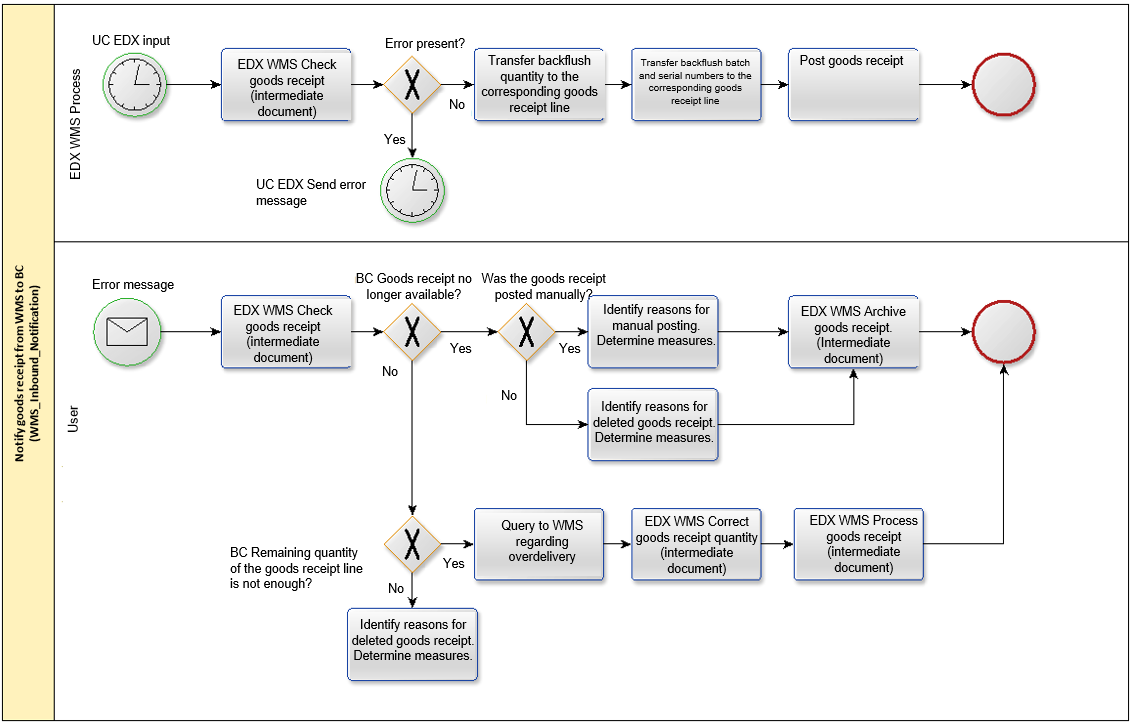
WMS Intermediate document
Serial number/batches
The serial / batch numbers assigned by the logistics company can be retrieved using the "Item tracking" action within the rows.
Packing material
The packing materials used by the logistics company can be retrieved with the action "Packing materials" within the lines.
The overview contains the SSCC/NVE and the respective package tracking number.
Note
Currently the packaging materials are not transferred to the posted document when posting the goods issue.
Packing list
With the packing list, the returned packaging materials are displayed in hierarchical form.
For this representation, the logistics company must report which packaging material is contained in which packaging material.
If outer packaging is used for several origin documents, it is sufficient to report the outer packaging when it is first used. For subsequent origin documents, only the corresponding outer packaging is referred to (Contained in SSCC/NVE).
Example:
| Type | Package Tracking No. | SSCC/NVE | Contained in SSCC/NVE | Package Description |
|---|---|---|---|---|
| Outer | 202103090000000001 | CONTAINER | ||
| Outer | DHL12334457563233 | 202103080000000000 | 202103090000000001 | PALLET 1 |
| Inner | DHL12334457563234 | 202103080000000001 | 202103080000000000 | KLT |
| Inner | DHL12334457563235 | 202103080000000002 | 202103080000000000 | KLT |
| Additional | 202103080000000002 | BLISTER | ||
| Additional | 202103080000000002 | BLISTER |
Storage location / storage place
When using the app "KUMAVISION Quality Management", storage bins are used.
The storage bin reported back by the logistics company is not processed. Within the interface it is assumed that the storage bin specified in the goods receipt corresponds to the delivery storage bin.
Check action
The following checks are performed:
| Status | Description | |
|---|---|---|
| Goods receipt no. | Logistics document must exist. | |
| Goods receipt line number | Logistics document line must exist. | |
| If transmitted, the origin number must match the origin number from the logistics document line. | ||
| Article number | Article number must exist and match the logistics document line. | |
| Variant must exist and match the logistics document line. | ||
| Quantity delivered | Must be <= remaining quantity of logistics document line. | |
| Serial Number/Batches | Must exist if the item is subject to batch or serial number requirements. |
Action booking
- Posting date of the logistics document is set according to EDX message setup.
- WMS order number / shipment number is taken over into the logistics document.
- Quantity delivered is taken over in logistics document line.
- Serial / batch number is taken over in origin document.
- Goods receipt is posted if this is set in the EDX message setup.
- Packing material is transferred to the booked sales delivery.
Goods receipt
WMS order number / transport number
The order number and transport number used by the logistics company are displayed in the EDX info register.
Stock from WMS to BC (Inventory Notification)
General
The message can be processed with the EDX intermediate document "WMS Stock".
Excerpted from Microsoft Dynamics 365 Business Central Online Help:
[...] You can use the Inventory Order and Inventory Entry documents to take inventory of items. The Inventory Order page is used to organize the full inventory collection project, for example, one per location. The Inventory Capture page is used to communicate and record the actual count of items. You can create multiple records for one order, such as distributing groups of items to different employees..
The Inventory Entry report can be printed from any entry and includes blank quantity fields for entering counted inventory. When a user is finished with the entry and the quantities have been entered on the Inventory Entry page, select the Finish action. This will transfer the quantities to the appropriate lines on the Inventory Order page. This feature ensures that no item count can be entered twice. [...]
Procedure User/EDX
The following diagram shows the automatic message processing sequence.
Prerequisite EDX message setup:
- Automatic processing is enabled.
- BC Release Document is enabled.
- Post BC Document is enabled
The posting date should be set to "Receipt Document Date".
In this case, the posting date is used by the logistics company.
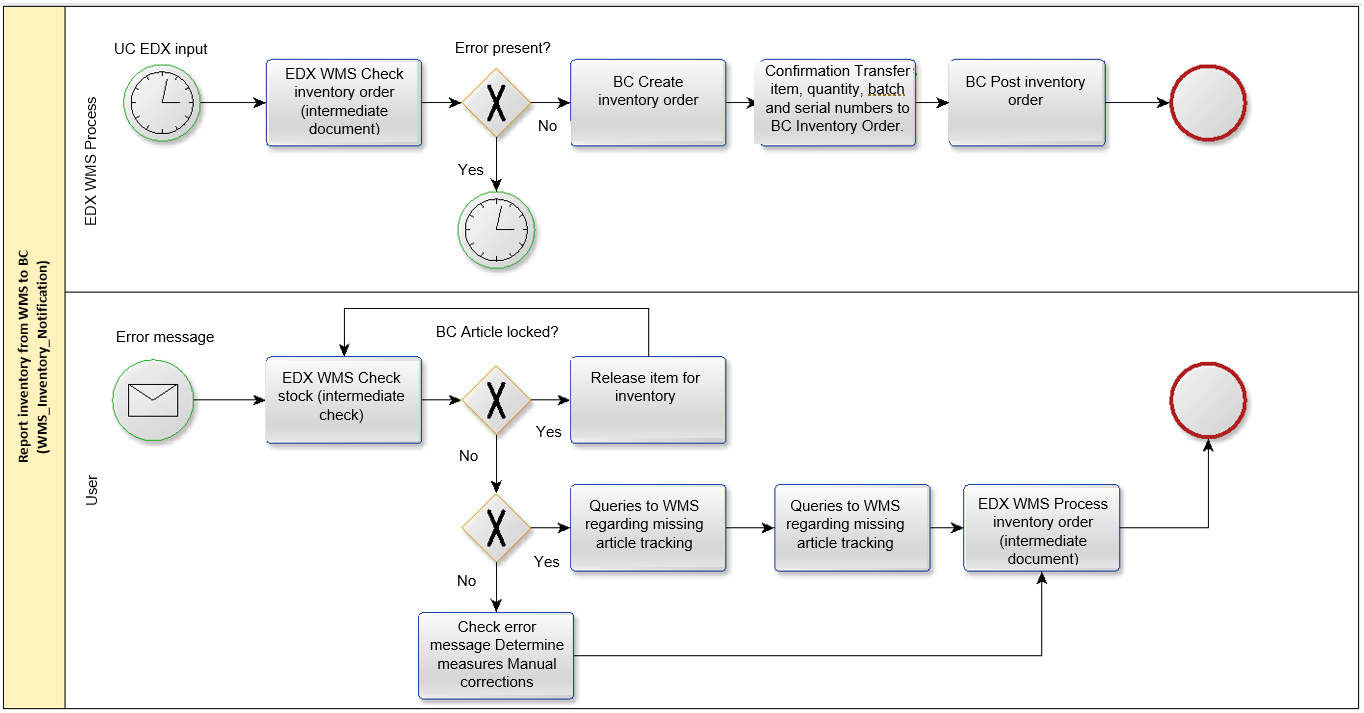
Confirmation of the article stock for all storage bins
Note
The logistics company must report back the stock of an item for all storage bins.
The inventory order reconciles the stock between the logistics company and Microsoft Dynamics 365 Business Central. If the stock of a storage bin is not reported back by the logistics company, then this stock will also be deleted in Microsoft Dynamics 365 Business Central.
WMS Intermediate document
Serial number/batches
The serial numbers/batches assigned by the logistics company are displayed directly in the line.
Check action
The following checks are performed:
| Status | Description |
|---|---|
| Storage location | Storage location must exist. If no storage location is returned, then the storage location that was assigned to the EDX partner is used. |
| Storage location | Storage location must exist. |
| Article number | Article number must exist (see WMS setup regarding blocked articles). |
| Variant must exist and match with logistics document line. | |
| Serial number/Batches | Must exist if the article is subject to batch or serial number. |
Action booking
- Creation of an inventory order
- Posting date of the inventory order is set according to EDX message setup.
- Create inventory for all items.
- Inventory order is posted if set in EDX message setup.
GS1 Application Receipt Acknowledgement
General
With the message "GS1 Application Receipt Acknowledgement" a receipt confirmation can be transmitted back to the message sender. The receipt acknowledgement can be used bidirectionally.
Example: Message from WMS to Microsoft Dynamics 365 Business Central
.
WMS sends the stock level.
Microsoft Dynamics 365 Business Central sends the receipt confirmation after receiving the stock.
Example: Message from Microsoft Dynamics 365 Business Central to WMS
Microsoft Dynamics 365 Business Central sends the goods issue.
WMS sends after receipt of the goods issue the acknowledgement of receipt.
Note
All messages from Microsoft Dynamics 365 Business Central to WMS contain the TransmissionId element with a unique GUID.
For messages from WMS to Microsoft Dynamics 365 Business Central, the TransmissionId element is optional.If the acknowledgement of receipt from Microsoft Dynamics 365 Business Central to WMS is to be used, then the messages from WMS must contain a unique TransmissionId.
Establishment
As described in section "EDX Message Types" the message "GS1 APP REC ACK EXP" must be assigned to the WMS partner. Then the option "Receipt Acknowledgement" is activated in the EDX message setup.
Guideline for GS1 Application Receipt Acknowledgement
The message description can be retrieved directly from GS1.
Application Receipt Acknowledgement - XML Application Receipt Acknowledgement | GS1
Example acknowledgement of receipt from BC to WMS
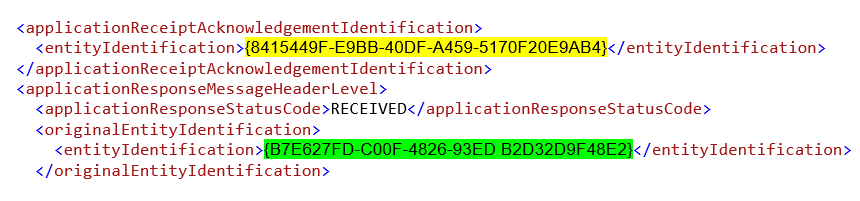
In the following example, the stock was received by the WMS with the transmission ID {B7E627FD-C00F-4826-93ED-B2D32D9F48E2}. The receipt confirmation was sent to the WMS with the transmission id {8415449F-E9BB-40DF-A459-5170F20E9AB4}.
Excerpt from the XML message:
Example acknowledgement of receipt from WMS to BC
In the following example, the goods issue was sent from Microsoft Dynamics 365 Business Central to the WMS with the transmission ID {970cd006-f6f5-4aff-b152-c2d92f29a661}. The receipt confirmation was sent with the transmission id {897D7F20-265F-4A16-8D32-17565A62FFE4} from the WMS.
Excerpt from the XML message:

WMS API Reference
The following sections describe the EDX-WMS events and their functionality.
Note
For the EDX WMS Integration Events, the "Sender" is always transmitted as the first parameter. In the following description this parameter is not listed, because the documentation is from the point of view of the event publisher.
For all following events, the Event Publisher CodeUnit "EDX WMS AddOn" can be used.
Integration of project-specific WMS messages
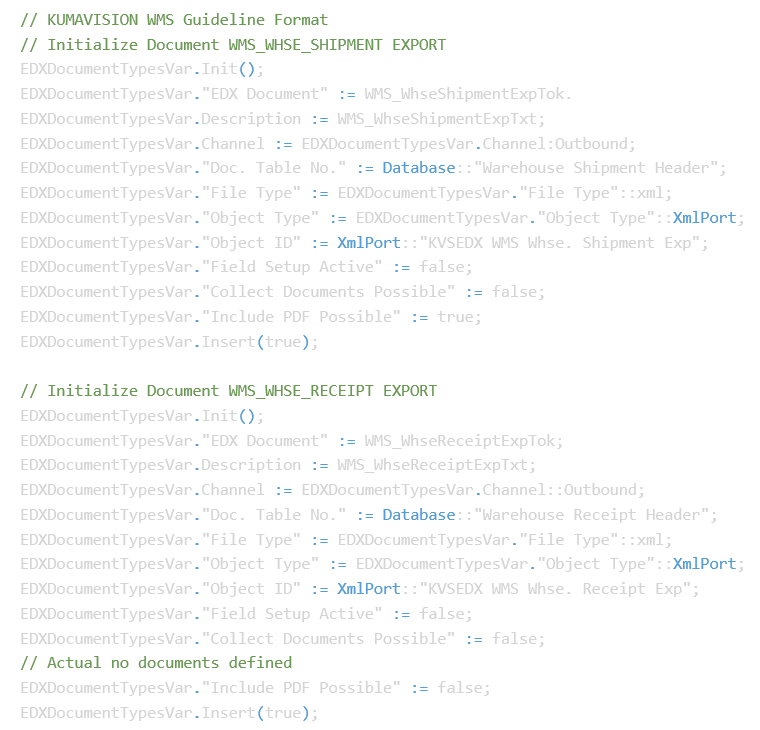
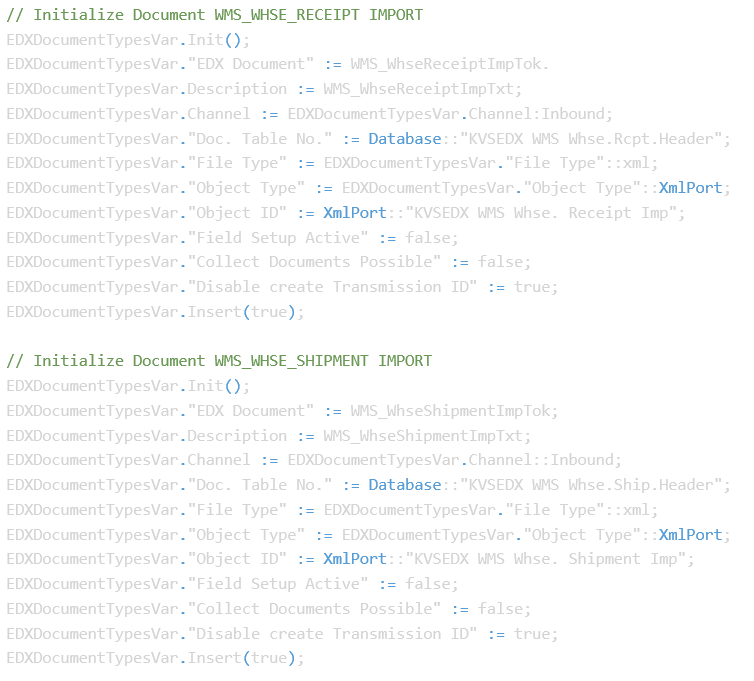
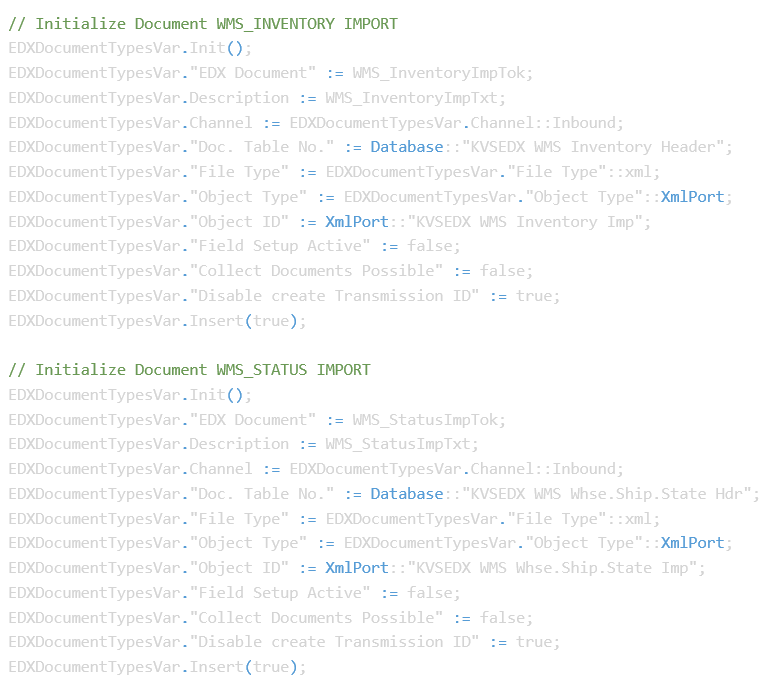
The registration of project-specific messages is to be implemented according to the "EDX API Reference".
The registration can be carried out according to the examples listed below. "Object Type" and "Object ID" are to be changed to the project-specific object accordingly.
Warning
Attention When using an XMLPort for exporting goods in/goods out, it must be ensured that the XMLPort has a table element for goods in/goods out line. If this element is not present in the XMLPort, then an error will occur during the export.
When using a CodeUnit for exporting goods in/goods out, the field KVSEDXOutbound. "Record Id" can be used to determine which goods in/goods out is currently being exported. With the field KVSEDXOutbound. "KVSEDX WMS Detail RecordId" the current origin document (sales order, purchase order etc.) is reported.
OnBeforeInitializeWarehouseShipmentHeader
The event is triggered before the WMS data (External WMS, EDX Partner) are initialized in the goods issue.
OnAfterInitializeWarehouseShipmentHeader
The event is triggered after the WMS data (External WMS, EDX Partner) has been initialized in the goods issue.
OnBeforeInitializeWarehouseReceiptHeader
The event is triggered before the WMS data (External WMS, EDX Partner) are initialized in the goods receipt.
OnAfterInitializeWarehouseReceiptHeader
The event is triggered after the WMS data (External WMS, EDX Partner) has been initialized in the goods receipt.
OnAfterPostSalesDocPackages
The event is triggered after the sales delivery is posted and the packages are transferred to the sales delivery line.
OnAfterPostPurchaseDocPackages
The event is triggered after the purchase delivery is posted and the packages are transferred to the purchase delivery line.
OnBeforeCreateWarehouseReceipt
The event is triggered before the intermediate document "EDX goods receipt" is processed.
OnAfterCreateWarehouseReceipt
The event is triggered after the intermediate document "EDX goods receipt" has been processed.
OnBeforeCreateWarehouseShipment
The event is triggered before the intermediate document "EDX goods issue" is processed.
OnAfterCreateWarehouseShipment
The event is triggered after the intermediate document "EDX goods issue" has been processed.
OnBeforeCreateInventory
The event is triggered before the intermediate document "EDX Stock" is processed.
OnAfterCreateInventory
The event is triggered after the intermediate document "EDX Stock" has been processed.
OnBeforeCreateWarehouseShipmentState
The event is triggered before the intermediate document "EDX goods issue status" is processed.
OnAfterCreateWarehouseShipmentState
The event is triggered after the intermediate document "EDX goods issue status" has been processed.
OnBeforeCheckWarehouseReceipt
The event is triggered before the intermediate document "EDX goods receipt" is checked.
OnAfterCheckWarehouseReceipt
The event is triggered after the intermediate document "EDX goods receipt" has been checked.
OnBeforeCheckWarehouseShipment
The event is triggered before the intermediate document "EDX goods issue" is checked.
OnAfterCheckWarehouseShipment
The event is triggered after the intermediate document "EDX goods issue" has been checked.
OnBeforeCheckInventory
The event is triggered before the intermediate document "EDX Stock" is checked.
OnAfterCheckInventory
The event is triggered after the intermediate document "EDX Stock" has been checked.
OnBeforeCheckWarehouseShipmentState
The event is triggered before the intermediate document "EDX goods issue status" is checked.
OnAfterCheckWarehouseShipmentState
The event is triggered after the intermediate document "EDX goods issue status" has been checked.
Microsoft, Microsoft Dynamics, and Microsoft Dynamics 365 are trademarks of the Microsoft group of companies.